
To rotate Project North in Revit, you use one tool on the Manage tab. It turns every plan so that the building sits square on the screen and on the sheet. This guide gives the steps, explains Project North vs True North, shows how to set True North, and lists what to check when the tool does not work. The steps are checked against Autodesk’s Revit 2027 help.
Quick answer
Open a floor plan whose Orientation is Project North. Draw a reference plane along a main wall. Go to Manage tab > Project Location panel > Position > Rotate Project North, choose Align selected line or plane and click the reference plane.
All plan views set to Project North turn with it. True North is a separate setting: use Rotate True North in the site plan for the real compass direction.
Next in the free course
Massing Tools and Site Design
Project North and True North are part of the site setup in module 5. The same module covers site plans, toposolids, property lines and shared coordinates.
Open this module in the free course
Free, tick off lessons as you go. Want a Revit file to follow along? See the practice files ($5.5/month on Patreon).
How to Rotate Project North in Revit
Use this when the building was modelled at an angle, for example traced over a survey drawing, and the plans come out skewed. In a workshared model, ask everyone to synchronize and close the file first.
- Open a floor plan. In the Properties palette, check that Orientation is set to Project North. The tool only turns plan views with this setting.
- Draw a reference plane along the wall that should be horizontal or vertical on the sheet. Skip this step if you only need 90° or 180°.
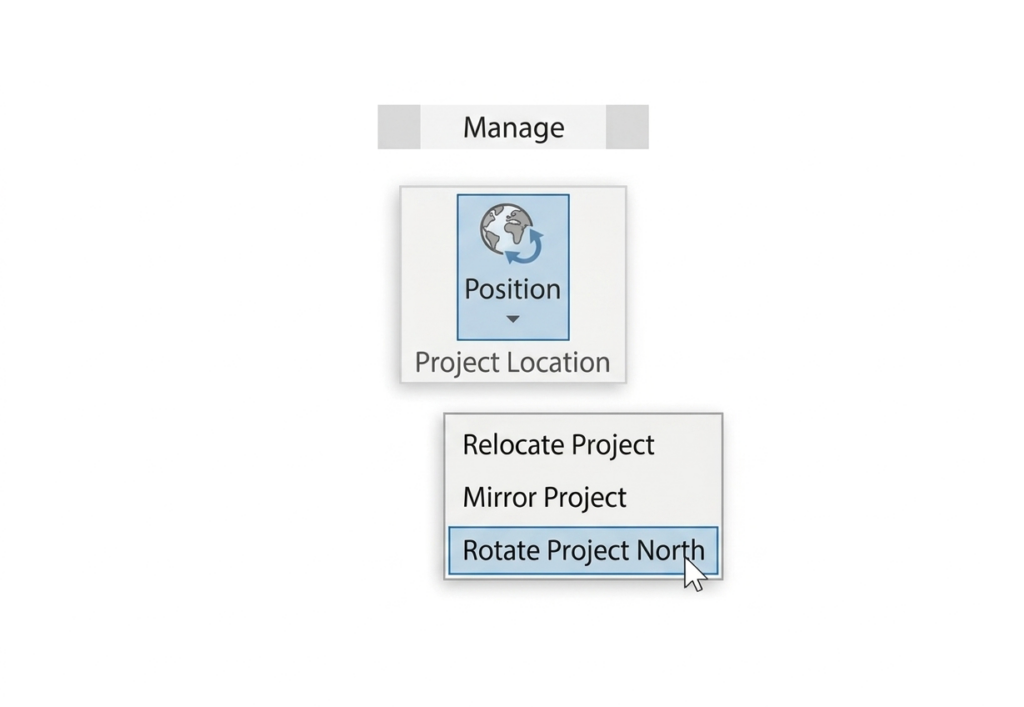
- Go to Manage tab > Project Location panel > Position drop-down > Rotate Project North.
- In the Rotate Project window, keep Maintain text note orientation during rotation ticked. Your text notes then stay readable and do not turn with the model.
- Choose the rotation. Pick a preset (Clockwise 90°, Counter Clockwise 90° or 180°), or pick Align selected line or plane and click your reference plane. Revit turns the model and shows how many elements were rotated.
- Check every plan view. If Revit lists errors, export them and fix them one by one, as Autodesk’s help advises.
In a workshared model, synchronize with central when you finish, then ask the team to create new local copies. More on this in Revit worksets.
Don’t do this
Don’t select everything and use the normal Rotate tool (RO) to straighten the building. It leaves True North, annotations and view crops behind, so the model no longer matches the survey or the linked models. Rotate Project North does the same job and keeps them together.
What Rotate Project North Changes
The tool turns the model inside the file and keeps its relation to True North. The building still faces the same real direction, so your sun study does not change. Only “up” on your plans changes.
| Turns with the model | Does not change |
|---|---|
| Plan views with Orientation set to Project North | Plan views with Orientation set to True North |
| Model elements | Drafting views |
| Detail lines, filled regions and revision clouds in those views | Callouts of plan views |
| Text notes (their position; their reading direction only if you untick the option) | Other view types |
| Decals on surfaces, and links (they keep their place relative to the model) | The real direction of True North |
After the rotation, look at your callouts, sheets and annotation symbols. Callout crops and viewports may need to be moved, and some users report that generic annotations stay where they were.
Project North vs True North in Revit
Revit keeps two norths in every model. Project North is the top of your drawing. True North is the real north of the site. A new model starts with both pointing to the top of the screen.
| Project North | True North | |
|---|---|---|
| What it is | A direction based on the main axis of the building. It is the top of the screen and of the sheet. | “The real-world north direction based on site conditions” (Autodesk). |
| Used for | Modelling, dimensions, floor plans and most sheets. | Site plans, sun studies, rendering, energy analysis, heating and cooling loads. |
| Tool | Rotate Project North | Rotate True North |
| When to set it | At the start. Model with the building square to the screen. | Later, when you have reliable survey information. |
| Shown in a view by | The Orientation property of each plan view: Project North or True North. | |
So which tool do you need? If the plans look skewed on the sheet, rotate Project North. If the shadows or the north arrow point the wrong way on the site plan, set True North.
How to Set True North in Revit
You set True North in Revit with the Rotate True North tool, in the site plan. You need the angle between Project North and True North from the survey, or a line in the view that points to true north.
- Open the Site plan view. See how to create a site plan if you do not have one.
- In the Properties palette, set Orientation to True North, so that you can see the result.
- Optional: draw a reference plane or place a north arrow that points to true north, to use as a guide.
- Go to Manage tab > Project Location panel > Position drop-down > Rotate True North.
- Type the angle or rotate by eye (see below).
- Check the result. Select the survey point: it lines up with True North. Select the project base point: it shows the angle between the two norths.

Rotate True North by Angle or by a Line
- By angle: type the value in Angle from Project to True North and press Enter. If True North is 45° away from the top of the view, type 45. In Revit 2026 and earlier this box is on the Options Bar. Revit 2027 has no Options Bar, so look for it on the ribbon or in the Properties palette.
- By a line: drag the rotation control from the centre of the model onto your guide, click along the guide to show where true north is, then click towards the top of the window.

You can read the value later: select the project base point and look at Angle to True North in Properties. More in the project base point guide.
Which Views Show True North?
Only the plan views whose Orientation you set to True North, usually the site plan. Your floor plans stay on Project North. According to Autodesk, shadows, sun studies and other analysis use True North in every view, even when the view shows Project North. To turn a 3D view to True North, use the ViewCube.
How to Set Project North in a New Revit Project
You do not type a value to set Project North in Revit. You set it by the way you start the model. Draw the main walls horizontal and vertical on the screen, and Project North is right from day one.
The usual mistake is to link a survey drawing and trace the building at its real angle. Do it the other way round: keep the building square, rotate the linked survey to fit it, then take the real position from the survey with shared coordinates. That also gives you True North. If the project already started at an angle, rotate Project North with the steps above.
The order I follow in a new project:
- Site: the site plan, the toposolid and the property line.
- Position: Project North square to the building, True North from the survey, the project base point and shared coordinates.
- Levels, then the ground floor slab and the walls.
Rotate One View Instead of Project North
A project has only one Project North. If a single drawing needs a different angle, for example one wing of an L-shaped building, leave Project North alone and use one of these:
- Rotate the crop region. Duplicate the view, show the crop region, select it and use Rotate. The view turns with it. If Rotate is not available, set the view’s Orientation to Project North first.
- Use a scope box. Rotate a scope box to the angle of the wing and assign it to the views of that wing. All of them get the same crop and angle.
- Rotation on Sheet. Select the viewport on the sheet and set Rotation on Sheet to 90° Clockwise or 90° Counterclockwise. This only works in steps of 90°.
Rotate Project North Not Working? What to Check
- Nothing changed in the view. The view’s Orientation is set to True North. Change it to Project North in Properties.
- Revit shows errors. Some elements could not be rotated. Export the list, cancel if it is long, fix or unpin those elements and run the tool again.
- The model has pinned links. Older Autodesk help (Revit 2020) says you cannot rotate Project North when links are pinned through shared positioning. The 2027 page no longer lists this limit. If the tool refuses, test in a copy of the file: unpin the links, rotate, then pin them again at once.
- The model is workshared. Someone else is in the file, or changes are not synchronized. Everyone must synchronize and close before you rotate.
- Callouts or drafting views did not turn. That is how the tool works. Move or rotate their crop regions by hand.
- Text is upside down. The text note option was unticked. Undo, then run the tool again with Maintain text note orientation during rotation ticked.
Project North and True North FAQs
How do I rotate Project North in Revit?
Open a plan view with Orientation set to Project North. Go to Manage tab > Project Location panel > Position > Rotate Project North. Choose a preset angle, or choose Align selected line or plane and click a reference plane drawn along the building.
What is the difference between Project North and True North in Revit?
Project North follows the main axis of the building and is the top of your drawings. True North is the real north of the site and is used for site plans, sun studies and analysis. Each plan view shows one or the other through its Orientation property.
How do I set True North in Revit?
Open the site plan and set its Orientation to True North. Go to Manage tab > Project Location panel > Position > Rotate True North. Type the Angle from Project to True North from your survey, or rotate to a line that points to true north.
How do I change a view from True North to Project North?
Click an empty part of the plan view. In the Properties palette, find Orientation and choose Project North or True North. This changes only that view.
Does rotating Project North change True North or sun studies?
No. The building keeps its real direction, so shadows and sun studies stay the same. Only the plan views set to Project North turn.
Why can’t I rotate Project North in Revit?
Check three things. The view’s Orientation must be Project North, or you will not see a change. In a workshared model, everyone must synchronize and close the file. If Revit reports errors, export them, fix or unpin those elements and try again.
Can I rotate only one view in Revit?
Yes. Rotate the crop region of that view, assign a rotated scope box to it, or set Rotation on Sheet for its viewport. None of these changes Project North.

Mohamed Fakhry has helped thousands of architects and designers find their next project with step-by-step guidance on his blog, mashyo.com. About Mohamed
His journey began during his university years when he recognized the need for information-rich 3D models to accelerate learning and improve production processes. Now, Mohamed shares his expertise through Revit tutorials that are accessible to all.
