
A Revit schedule is a table that reads its data straight from the model: doors, rooms, areas, furniture, sheets. This guide shows how to create a schedule in Revit step by step, then how to sort it, total it, format it, add calculated values and send it to Excel. The steps are checked against Autodesk’s Revit 2027 help and work the same way in the last several releases.
Quick answer
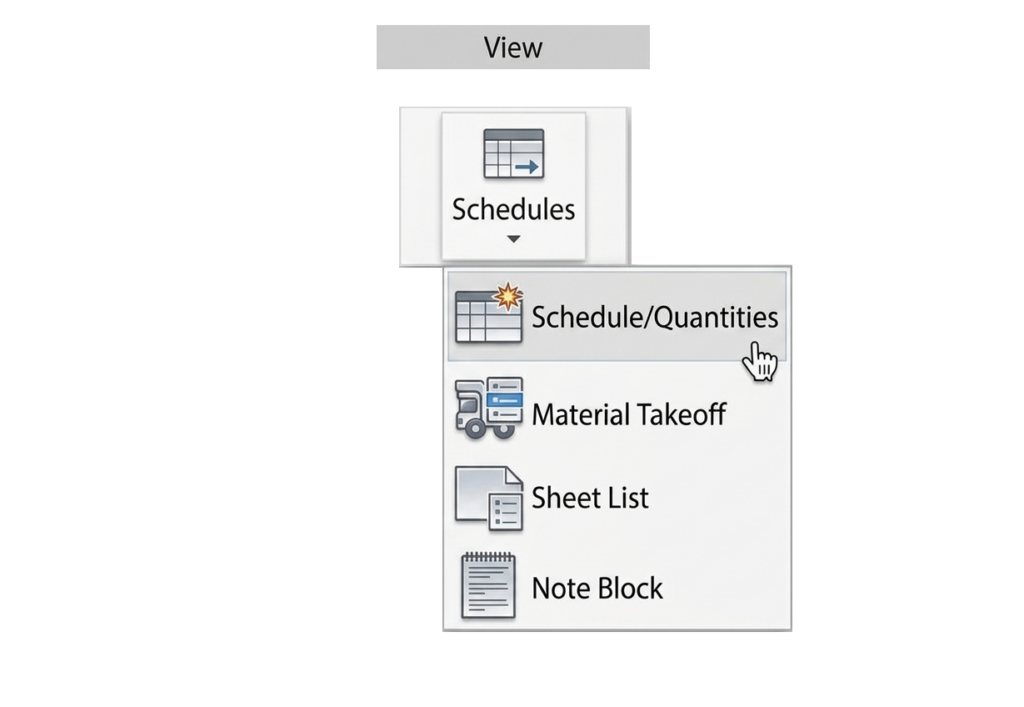
To create a schedule in Revit, go to View tab > Create panel > Schedules > Schedule/Quantities. Pick a category (Doors, Rooms, Furniture…), click OK, add the fields you want as columns, and click OK again.
Revit builds a live table that updates when the model changes. Drag it from the Project Browser onto a sheet to print it.
Part of the free course
Documentation and Communication
Schedules are one lesson in module 6. The same module covers legends, revisions, worksets and getting data out of Revit.
Open this module in the free course
Free, tick off lessons as you go. Want a Revit file to follow along? See the practice files ($5.5/month on Patreon).
What Is a Schedule in Revit?
A schedule in Revit is not a table you type into. It is a view of the model’s data, the same way a floor plan is a view of its geometry. Delete a door in plan and its row leaves the door schedule. Change a fire rating in the schedule and the door in the model changes with it.
That two-way link is the reason scheduling in Revit is worth learning properly. A table typed by hand in Excel is out of date the moment someone moves a wall. A Revit schedule can’t be.
Types of Revit Schedules
Revit has nine kinds of schedule. You will find them all under View tab > Create panel > Schedules. Day to day, most people use the first three.
| Schedule type | What it lists |
|---|---|
| Schedule/Quantities | Model elements of one category: doors, windows, walls, rooms, areas, furniture. This guide is about this one. |
| Material Takeoff | The materials inside the elements, with area and volume. See how to create a BOQ in Revit. |
| Sheet List (Drawing List) | Every sheet in the project, for the cover sheet. |
| Key Schedule | A list of keys you define (for example room finish sets) that fill several parameters at once. |
| Note Block | Generic annotation symbols, used for numbered plan notes. |
| View List | Every view in the project. Useful for checking the model, rarely printed. |
| Revision Schedule | Revisions, inside a title block family. |
| Panel Schedule and Graphical Column Schedule | Electrical panels and structural columns. |
How to Create a Schedule in Revit (Step by Step)
We’ll make a door schedule. Every project needs one, and it uses every setting you will need for other categories.
- Go to View tab > Create panel > Schedules drop-down > Click Schedule/Quantities.
- Choose the category. In the New Schedule dialog, select Doors. Keep the name “Door Schedule” or type your own.
- Check the two options below the name. Leave Schedule building components selected, and check the Phase. A schedule set to the wrong phase is the most common reason one comes out empty. Click OK.
- Add fields. In Schedule Properties, move the fields you want from Available fields to Scheduled fields: Mark, Level, Family and Type, Width, Height, Fire Rating, Comments. The order from top to bottom becomes the column order from left to right.
- Click OK. Revit opens the schedule as a new view. You will find it in the Project Browser under Schedules/Quantities.
To change the schedule later, open it and look at the Properties palette. There is an Edit button next to Fields, Filter, Sorting/Grouping, Formatting and Appearance. Each one opens the same dialog on a different tab.
Making a schedule in Revit for windows, walls or any other category is the same five steps. Only the category and the fields change.
A note for Revit 2027: the new rule-based numbering can fill in door marks for you, and the Mark column of the door schedule picks those numbers up like any other value.
Schedule Properties in Revit: The Five Tabs
| Tab | What it controls | The setting people miss |
|---|---|---|
| Fields | Which parameters become columns, plus calculated values and combined parameters. | Include elements in links, at the bottom of the tab. More on it below. |
| Filter | Which rows appear, for example only doors on Level 1. | You can only filter by a field that is in the schedule. Add it, filter by it, then hide it on the Formatting tab. |
| Sorting/Grouping | The order of rows, a header and footer for each group, blank lines and grand totals. | Itemize every instance. Untick it and identical rows collapse into one line. |
| Formatting | Column headings, alignment, units, hidden fields, totals and conditional formatting. | Calculate totals on numeric fields such as Area. Without it, the totals row has no sum for that column. |
| Appearance | Grid lines, outline, title and header text. | Most of these settings show only on the sheet. The schedule view stays a plain grid. |
Count each door type in four clicks
Add the Count field. On the Sorting/Grouping tab, sort by Family and Type and untick Itemize every instance. The door list becomes a door type summary with a quantity on each line. This is the first thing a cost consultant or a jury asks for.
For subtotals per level, sort by Level first, tick Footer and choose Title, count, and totals. Tick Grand totals for one line at the bottom of the whole schedule.
Revit Schedule Formatting
Revit schedule formatting is done per column. Open the Formatting tab, select a field on the left, and set its options on the right.
- Heading: the text above the column. Change “Family and Type” to “Door Type” here. The parameter itself keeps its name.
- Heading orientation: turns the heading vertical. It shows on the sheet only.
- Alignment: left, center or right. Right-align numbers so the digits line up.
- Field Format: units and rounding for one column. Untick Use project settings first. This is how you show areas in m² with no decimals while the rest of the project keeps two.
- Hidden field: keeps the field for sorting and filtering but removes the column.
- Calculate totals: sums a numeric column in the footers and the grand total. The same list has Calculate minimum and Calculate maximum.
Two more tools are on the ribbon when a schedule is open. Drag across several headings and click Group to put one shared heading above them (for example “Size” above Width and Height). Click Freeze Header to keep the headings in sight while you scroll a long schedule.
Conditional Formatting in a Revit Schedule
Revit conditional formatting colours a cell when its value meets a rule. Use it to make problems stand out: rooms under the minimum area, doors narrower than 900 mm, a fire rating left empty.
- Open the schedule and click Edit next to Formatting in the Properties palette.
- Select the field you want to colour, for example Area. Pick it here, before the next step.
- Click Conditional Format.
- Choose a Test (such as Less Than) and type the value. Between and Not Between ask for two values.
- Click the Background Color swatch, pick a colour, and click OK.
The colour shows in the schedule view straight away. To print it, tick Show conditional format on sheets for that field on the Formatting tab. Leave it unticked when the colour is only a checking tool for you.
Calculated Value in a Revit Schedule
A Revit calculated value is a column that does not exist in the model. Revit works it out from the other fields in the schedule, with a formula or as a percentage.
- Open the schedule and click Edit next to Fields.
- Click Add calculated parameter (the fx button).
- Type a Name, and choose Formula or Percentage.
- For a formula, set the Type to match the result (Area, Number, Currency, Text…) and type the formula. The … button lists the fields you can use.
- Click OK twice. The new column appears at the end.
Three formulas that cover most needs:
- Door area:
Width * Height, Type: Area. - A label from a rule:
if(Width > 900 mm, "Wide", "Standard"), Type: Text. - Share of the total area: choose Percentage, set Of to Area and leave By on Grand total. Each room now shows its percentage of the whole program.
Three rules save most of the errors:
- A formula can only use fields that are already in the schedule. Add the field first, and hide it afterwards if you don’t want the column.
- Field names are case-sensitive.
widthis notWidth. - “Inconsistent units” means the Type does not match the result. Length × length is an Area, not a Number.
A calculated value lives only in that schedule. You can’t tag it or use it in another schedule.
How to Create a Room Schedule in Revit
A room schedule lists every room with its number, name and area. You need rooms in the model first. If you have none, start with rooms and room tags in Revit.
- Go to View tab > Schedules > Schedule/Quantities and choose the Rooms category.
- Add the fields Number, Name, Level and Area. Add Department, Floor Finish or Occupancy if you use them.
- On Sorting/Grouping, sort by Level, then by Number. Tick Footer for a subtotal per level, and Grand totals.
- On Formatting, select Area and set Calculate totals.
Read the Area column before you trust it. Not Placed is a room that was deleted from the plan but not from the project. Not Enclosed is a room with a gap in its boundary. Redundant Room means two rooms sit in the same space. Fix these and the total is right.
Room schedules also work the other way round. Click Insert > Data Row on the ribbon to add rooms to the schedule before you draw anything. This turns the client’s brief into a list of unplaced rooms that you then place in plan one by one.
Student tip
Put a room schedule with area and a grand total on your area sheet. When a jury member questions your program, you show live numbers from the model, not a table you typed the night before.
Revit Area Schedule
An area schedule and a room schedule are not the same thing. Rooms measure usable space between walls. Areas are zones you draw yourself in an area plan, for gross building area, rentable area or any split the client asks for.
- Create the area plan. Go to Architecture tab > Room & Area panel > Area drop-down > Area Plan. Choose the type (Gross Building or Rentable) and the levels.
- Place the areas. Check the area boundary lines, then use Area on the same panel to place an area inside each boundary.
- Create the schedule. Go to View tab > Schedules > Schedule/Quantities. In the category list, choose Areas (Gross Building) or Areas (Rentable). Each area scheme has its own category.
- Add fields: Level, Name, Area Type and Area.
- Total it. Sort by Level with a footer, tick Grand totals, and set Calculate totals on the Area field.
For a one-line total per floor, untick Itemize every instance. The area schedule shrinks to one row per level with its area, which is the table a planning submission usually needs.
Furniture Schedule in Revit
A furniture schedule in Revit answers two questions: how many of each piece, and which room it is in.
- Create a Schedule/Quantities for the Furniture category.
- Add Family and Type, Count, Manufacturer, Model and Cost.
- For the room, change Select available fields from to Room and add Room: Number and Room: Name.
- Sort by Room: Number, then by Family and Type, and untick Itemize every instance.
You now have one line per furniture type per room, with a count. If a piece shows no room, it stands outside every room boundary, or its family origin falls on the wrong side of a wall.
Include Elements from Linked Files in a Schedule
On real projects the model is rarely one file. The structure is a link, the interiors are a link, and on a master plan each building is a link. By default a schedule counts only the host file, so the column schedule comes out empty and the total area is short by a whole building.
- Open the schedule and click Edit next to Fields.
- Tick Include elements in links at the bottom of the tab.
- Change Select available fields from to RVT Links and add the File Name field. It tells you which file each row comes from.
- Click OK. Rows from the links now sit next to your own.
Four things to know before you rely on it:
- Linked rows are read-only. You can see a linked door’s fire rating but not change it. Edit it in the linked file.
- Some filters stop working. With links included, you cannot filter the schedule by Family, Type, Family and Type, Level or Material.
- Show only one link by filtering on the RVT Link: File Name field. Autodesk’s own support article uses the same approach. Hide the field afterwards if you don’t want it printed.
- Watch for double counting. If the same element exists in the host and in a link (common after Copy/Monitor), it is listed twice. Sort by the file name once to check before you trust the totals.
Links work in schedules of model elements and in sheet lists. They are not supported in note blocks, view lists or key schedules.
Find a Schedule Row in the Model (Highlight in Model)
This is the feature I wish someone had shown me in my first year. You see a wrong value in row 37, and you want that exact door without hunting through 40 plans.
- In the schedule, click any cell in the element’s row.
- On the Modify Schedule/Quantities tab, click Highlight in Model.
- Revit opens a view that contains the element, zooms to it and selects it. The Show Element(s) in View dialog stays open.
- Click Show to move to the next view that contains the same element (plan, section, elevation, 3D). Click Close when you have the one you want.
Autodesk’s help notes that this works best when views are tiled. Type WT to tile the schedule next to a plan. The element stays selected, so you can fix it right there in the Properties palette.
Put a Revit Schedule on a Sheet
- Place it: open the sheet and drag the schedule onto it from the Project Browser, the same way you place a plan.
- Resize columns: select the schedule on the sheet and drag the blue triangles above the columns. Column widths on the sheet are separate from the widths in the schedule view.
- Split a long schedule on one sheet: select it and click the break mark on its right edge. The schedule splits into two columns side by side.
- Split it across several sheets: open the schedule view and click Split & Place on the Modify Schedule/Quantities tab (Revit 2022 and later). Pick the sheets and a segment height, then place the first segment. Revit puts the rest in the same position on the other sheets.
Check the schedule on the sheet before you print. Text styles, grid lines and vertical headings all look different there than in the schedule view.
Send a Revit Schedule to Excel
Revit 2027 still has no “Save as .xlsx” button for schedules. The built-in route is a delimited text file, which Excel opens without trouble.
- Open the schedule view. The command is greyed out in any other view.
- Go to File > Export > Reports > Schedule, choose a name and folder, and click Save.
- For column headers choose One row, and set the field delimiter to Tab. Commas often appear inside type names, so a tab is safer. Click OK.
- In Excel, use Data > From Text/CSV and select the text file (.txt).
This export goes one way. Edits you make in Excel do not come back into Revit. For a two-way link, where you edit door marks or room names in Excel and push them back, see how to export Revit schedules to Excel with a free add-in.
Why Is My Revit Schedule Wrong?
The schedule is empty
Check the schedule’s Phase in Properties first, then the Filter tab. If the elements are in a linked file, tick Include elements in links.
The totals are blank
On the Formatting tab, select the numeric field and set Calculate totals. Then tick Grand totals or a Footer on the Sorting/Grouping tab. You need both.
The same door appears twice
The element usually exists in both the host and a link, or two elements are stacked on top of each other. Use Highlight in Model on both rows to see which it is.
I can’t edit a value
Linked elements, calculated values and read-only parameters such as Area can’t be typed over. Change the model or the source file.
I changed one cell and many rows changed
You edited a type parameter, so every element of that type got the new value. The same happens when Itemize every instance is off and one row stands for many elements.
The field I need is not in the list
Change Select available fields from on the Fields tab (Room, Project Information, RVT Links). If the data does not exist yet, create a project parameter for that category and it will show in the list.
Schedules are where your model turns into information someone else can use: a contractor counting doors, a client checking areas, a jury checking your program. Once the schedule shows the right elements, the same logic gives you quantities for costing. Continue with BOQ in Revit: how to get a Bill of Quantities from your model.
Revit Schedule FAQs
How do I make a schedule in Revit?
Go to View tab > Create panel > Schedules > Schedule/Quantities, select a category such as Doors or Rooms, add the fields you want as columns, and click OK. The schedule appears in the Project Browser and updates with the model.
Where are schedules in Revit?
Existing schedules are in the Project Browser under Schedules/Quantities. The tool to create a new one is on the View tab, Create panel, Schedules drop-down.
How do I create a room schedule in Revit?
Create a Schedule/Quantities for the Rooms category and add Number, Name, Level and Area. Sort by Level, tick Grand totals, and set Calculate totals on the Area field to get the total floor area.
How do I create an area schedule in Revit?
Create an area plan and place areas in it first. Then create a Schedule/Quantities and choose Areas (Gross Building) or Areas (Rentable) as the category. Add Level, Name and Area, and turn on Calculate totals for Area.
How do I add a calculated value to a Revit schedule?
Edit the schedule’s Fields and click Add calculated parameter. Give it a name, choose Formula or Percentage, set the Type to match the result, and type a formula that uses fields already in the schedule, such as Width * Height.
How do I use conditional formatting in a Revit schedule?
Edit the schedule’s Formatting, select the field, and click Conditional Format. Choose a test and a value, pick a background colour, and click OK. Tick Show conditional format on sheets if the colour should print.
How do I include elements from linked files in a Revit schedule?
Edit the schedule’s Fields and tick Include elements in links at the bottom of the tab. Add the File Name field from the RVT Links list to see which link each row comes from. Linked rows are read-only.
Can I export a Revit schedule to Excel?
Yes. Open the schedule and go to File > Export > Reports > Schedule. Revit saves a delimited text file that Excel opens with Data > From Text/CSV. Revit has no native .xlsx export, so a two-way link needs an add-in.

Mohamed Fakhry has helped thousands of architects and designers find their next project with step-by-step guidance on his blog, mashyo.com. About Mohamed
His journey began during his university years when he recognized the need for information-rich 3D models to accelerate learning and improve production processes. Now, Mohamed shares his expertise through Revit tutorials that are accessible to all.
