
A Revit wall sweep adds a profile-based projection to a wall, such as a baseboard, crown molding, parapet cap, sill, chair rail, or trim band. In this guide, you will learn the two workflows that matter most: placing a wall sweep on selected walls, and building a sweep into a wall type so it appears automatically.
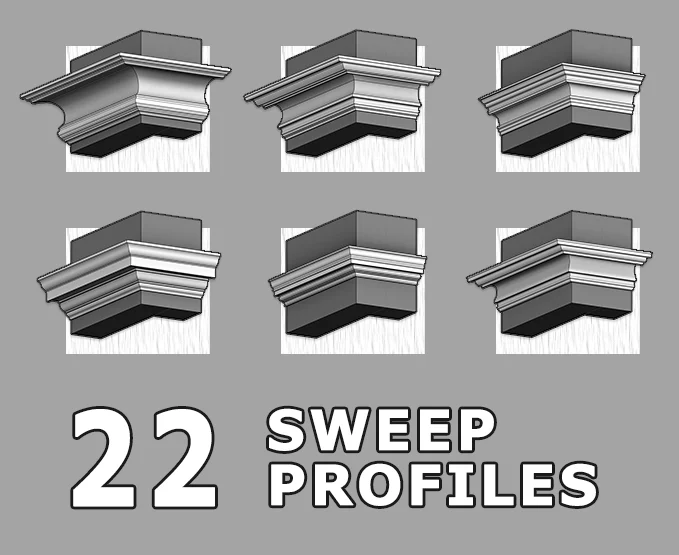
You can use Revit’s built-in profiles for quick details, or create your own profile family when you need a specific trim shape. The free download below includes 22 Revit wall sweep profiles you can load and reuse in your own projects.
Download Free Revit Wall Sweep Profiles
Get the free .RFA profile pack with 22 wall sweep shapes for baseboards, crown molding, trim bands, and decorative wall details.
What Is a Wall Sweep in Revit?
A wall sweep is a Revit wall-hosted element that runs a profile along a wall face. It is commonly used for trim, reveals that project outward, exterior bands, stone sills, parapet caps, and modeled baseboards. The sweep’s shape comes from a profile family, and its material, setback, cutting behavior, and visibility subcategory are controlled in the wall sweep type properties.
The important decision is whether the sweep should be an individual element or part of the wall type. Use a standalone Wall: Sweep when the detail only appears in selected locations. Add the sweep to the wall type when every wall of that type should include the same profile automatically.
| Workflow | Best for | Schedule behavior |
|---|---|---|
| Wall: Sweep tool | Selected baseboards, trim, bands, and one-off details | Can be scheduled as a separate wall sweep element |
| Sweep inside wall type | Repeating parapet caps, sills, base trim, wainscot bands, and standard assemblies | Part of the wall type; not scheduled independently |
| Custom profile family | Nonstandard molding, manufacturer profiles, custom design details | Depends on whether it is used as standalone or wall-type sweep |
Jump to a Section
- Place a Wall Sweep on Selected Walls
- Change the Wall Sweep Profile and Material
- Create a Custom Wall Sweep Profile
- Add a Sweep to a Wall Type
- Returns, Setbacks, and Segments
- Common Wall Sweep Problems
Place a Wall Sweep on Selected Walls
This is the fastest method when you need a wall sweep on only a few walls. Revit lets you place horizontal or vertical sweeps from a 3D, elevation, or section view. If the tool is not active, switch views first.
- Open a 3D, elevation, or section view that shows the wall face.
- Go to Architecture tab > Build panel > Wall drop-down.
- Click Wall: Sweep.
- In the Type Selector, choose the wall sweep type you want to place.
- In the Placement panel, choose Horizontal or Vertical.
- Move the cursor over the wall face and click to place the sweep.
- Click adjacent wall faces if the sweep should continue around a corner, then click Modify to finish.

After placing the sweep, use temporary dimensions, grips, and instance properties to adjust its height, offset from wall, level, and length. For slanted walls, check the Orientation instance property after placement; depending on the detail, you may want the sweep perpendicular to the face or parallel to the ground.
Change the Wall Sweep Profile and Material
The wall sweep type controls the profile and material. Always duplicate the type before changing a profile if the existing sweep type is already used elsewhere in the project.
- Select the wall sweep.
- In the Properties palette, click Edit Type.
- Click Duplicate and name the new type, such as Baseboard – 100 mm.
- Under Construction, choose a loaded profile from the Profile field.
- Set the Material, Default Setback, Cuts Wall, and Cut by Inserts settings as needed.
- Click OK.

If the profile you need is not listed, load a profile family first. Go to Insert tab > Load Family, then browse to your Revit content library or your office profile folder. Revit profile families commonly use the .RFA format and appear under Families > Profiles in the Project Browser after loading.

For large projects, be careful with Cuts Wall. Autodesk notes that clearing the option can improve performance in models with many sweeps, especially when the sweep is embedded in the wall and would otherwise cut host geometry.

Create a Custom Wall Sweep Profile
Create a custom profile when the built-in profiles do not match your detail. This is the best workflow for manufacturer baseboards, custom crown molding, historic trim, or a profile you want to reuse across multiple projects.
- Open a similar existing profile from the Project Browser, or start a new Profile family from File > New > Family.
- If using an existing family, right-click the profile under Families > Profiles and click Edit.
- In the Family Editor, use Create tab > Detail panel > Line to sketch the profile shape.
- Delete the old profile lines if you started from a copied profile.
- Keep the profile closed, clean, and drawn at the correct real-world size.
- Save the family with a clear name.
- Click Load into Project.
- Select your wall sweep, click Edit Type, and choose the new profile.


Profile family quality matters. If a loaded family does not appear in the wall sweep Profile list, it was probably created from the wrong family template or assigned to the wrong profile usage. Recreate it from a Profile template and keep it as a 2D profile, not a generic model or detail component.
Add a Sweep to a Wall Type
Add the sweep to the wall type when it should be part of the assembly everywhere that wall type is used. This is useful for parapet caps, masonry bands, precast sills, wainscot profiles, and repeating base trim in standardized walls.
- Select a wall that uses the target wall type.
- Click Edit Type.
- Click Duplicate before changing a production wall type.
- Next to Structure, click Edit.
- Open the preview and use a section preview if the vertical structure tools are unavailable.
- Click Sweeps.
- Click Add, choose the profile, material, distance from top or base, side, offset, setback, and cut options.
- Click OK until you return to the model.
Use this method carefully. A wall-type sweep is excellent for standards, but it can create extra geometry across many walls. If the sweep only appears in a few places, a standalone Wall: Sweep is easier to control and schedule.
Returns, Setbacks, and Segments
Wall sweeps often need small cleanup edits at corners, inserts, and wall ends. These settings make the difference between a quick model element and a presentable architectural detail.
Modify wall sweep returns
- Select the wall sweep.
- On the Modify | Wall Sweeps tab, click Modify Returns.
- Enter an angle value.
- Click the end of the sweep to apply the return.
Positive angle values move the end toward the wall. Negative values move it away from the wall.

Use setbacks near doors and windows
The Default Setback parameter controls how far the sweep pulls back from intersecting wall inserts, such as doors and windows. Use it when a trim band should stop cleanly before an opening instead of crashing through the family.
Add or remove sweep segments
After placing a wall sweep, you can continue it onto adjacent walls or remove segments you do not need. This is useful when a trim band should wrap one corner but stop before another.
Common Wall Sweep Problems and Fixes
Wall: Sweep is greyed out
Switch to a 3D, elevation, or section view. The Wall: Sweep tool is not intended for normal plan-view placement.
The loaded family does not appear in the Profile list
The family is probably not a profile family. Recreate or resave it from a Revit Profile template and load it into the project again.
Sweeps do not miter cleanly at corners
Check that the sweeps are the same type and height at the join. Autodesk notes that sweeps created at different heights miter when they are later set to the same height.
A sweep cuts through a door or window
Edit the wall sweep type and adjust Default Setback and Cut by Inserts. For wall-type sweeps, also review the setback value in the Wall Sweeps dialog.
The model slows down after adding many sweeps
Use wall-type sweeps only where they are needed, and consider clearing Cuts Wall for sweeps that do not need to cut host geometry.
FAQ
Can I add a wall sweep in Revit LT?
Yes. Revit LT includes wall sweeps. Use Architecture tab > Wall drop-down > Wall: Sweep from a 3D, elevation, or section view.
What is the difference between a wall sweep and a wall reveal?
A wall sweep adds material to a wall using a profile. A wall reveal removes material from a wall using a profile, creating a recessed groove or cutout.
Can Revit wall sweeps be scheduled?
Standalone wall sweeps can be scheduled. Integral sweeps that are built into a wall type are part of that wall type and cannot be scheduled independently.
Where are Revit wall sweep profiles stored?
They are usually in your Revit content library under Profiles, but the exact folder depends on version, language, and office setup. You can also load profile families from any custom folder using Insert > Load Family.
Next, try using the profiles on a real wall detail: add a baseboard to an interior wall, create a custom profile for a curved trim condition, or use the Project Browser to organize reusable profile families. For related wall modeling, see the guide on curved walls in Revit.
References
- Autodesk Help: Wall Sweeps
- Autodesk Help: Add a Sweep to a Wall Type
- Autodesk Help: Wall Sweep Type Properties

Mohamed Fakhry has helped thousands of architects and designers find their next project with step-by-step guidance on his blog, mashyo.com. About Mohamed
His journey began during his university years when he recognized the need for information-rich 3D models to accelerate learning and improve production processes. Now, Mohamed shares his expertise through Revit tutorials that are accessible to all.
